
The Window
Documentation in progress
Some sections are still incomplete.
The window is in three parts: a sidebar on the left holding the workspace, the terminal area in the middle, and an optional panel on the right. The terminal itself is WezTerm's, and its documentation covers rendering, fonts and escape sequences unchanged. What follows is the part around it.
The sidebar
The sidebar holds the workspace: the Space on show, its Projects, and the Threads in each Project. Spaces, Projects and Threads describes that model and every menu in it; this is only the layout.
At the top, a button names the Space on show and opens the Space menu. It lists the Spaces on this machine first, then the Spaces of each remote server under that server's name and connection state, each server with New Space Here to add one there. A Space already open in another window is marked occupied and cannot be picked, because a Space is shown in one window at a time. The same menu holds Add Remote Host…, New Space, renaming the current Space, and removing it or another one.
Below that are the Space's Projects, each with its Threads. A pinned Thread leaves its Project's list for a single Pinned section at the top of the Space, which gathers the pins of every Project in it. Pinned Threads cannot be dragged into another order, and the pins of an archived Project stay out of the section until it is unarchived. A Thread can also be marked unread.
A Thread carries a live status, so the list answers which sessions are working and which are waiting on you without visiting each one — Agent Status describes how that is decided.
With the sidebar put away, resting the pointer on the left edge of the window, or on the sidebar button, slides it out over the terminal until the pointer leaves. The terminal underneath does not move or resize, so nothing running in it sees a change of size. A menu or rename opened from the revealed sidebar holds it out until you are done.
Window tabs and pane tabs
Tabs come in two levels, and it is worth keeping them apart.
The row along the top of the window holds the window tabs. Each one is a whole layout — a single terminal, or several split side by side and one above another — and switching window tab swaps the whole layout at once.
Every cell of that layout has a strip of its own above it: a pane stack. The tabs in a stack are terminals that take turns in that one cell, so a cell can hold several shells without being split any further. The buttons at the end of the strip open a new tab in the stack, split the cell down or to the right, and zoom it to fill the window tab; double-clicking empty space in the strip also opens a new tab there. Where a cell sits in a split above or below another, a further button folds it down to its strip to give the rest the room, one cell per window tab.
A pane tab can be dragged onto a cell. Dropped in the middle of the cell, it joins that cell's stack; dropped near an edge, it splits the cell on that side and takes the new half. A highlight shows which it will be before you let go.
Right-clicking a window tab offers:
| Item | Does |
|---|---|
Rename Tab… | Names the window tab |
Close Tabs to Left, Close Tabs to Right, Close Other Tabs | Closes those window tabs without asking first |
Move Tab Left, Move Tab Right | Moves it one place along the row |
New Terminal Tab to Right | Opens a window tab beside it, on the same machine as its current terminal |
Zoom Pane | Zooms the window tab's active cell to fill it, or puts it back |
Right-clicking a pane tab renames that tab.
Right-clicking inside a terminal offers Copy, Paste, Edit Recording Masks… and Clear Recording Masks (see Recording masks), Split Right, Split Left, Split Down and Split Up, and Reset Terminal. Its last item, Frontend access, chooses between A · Shared (tmux-like) and B · Handoff (exclusive) — whether several devices can drive the terminal together or one at a time — described in Web. When the program in the terminal captures the mouse, hold Shift while right-clicking.
Tab icons
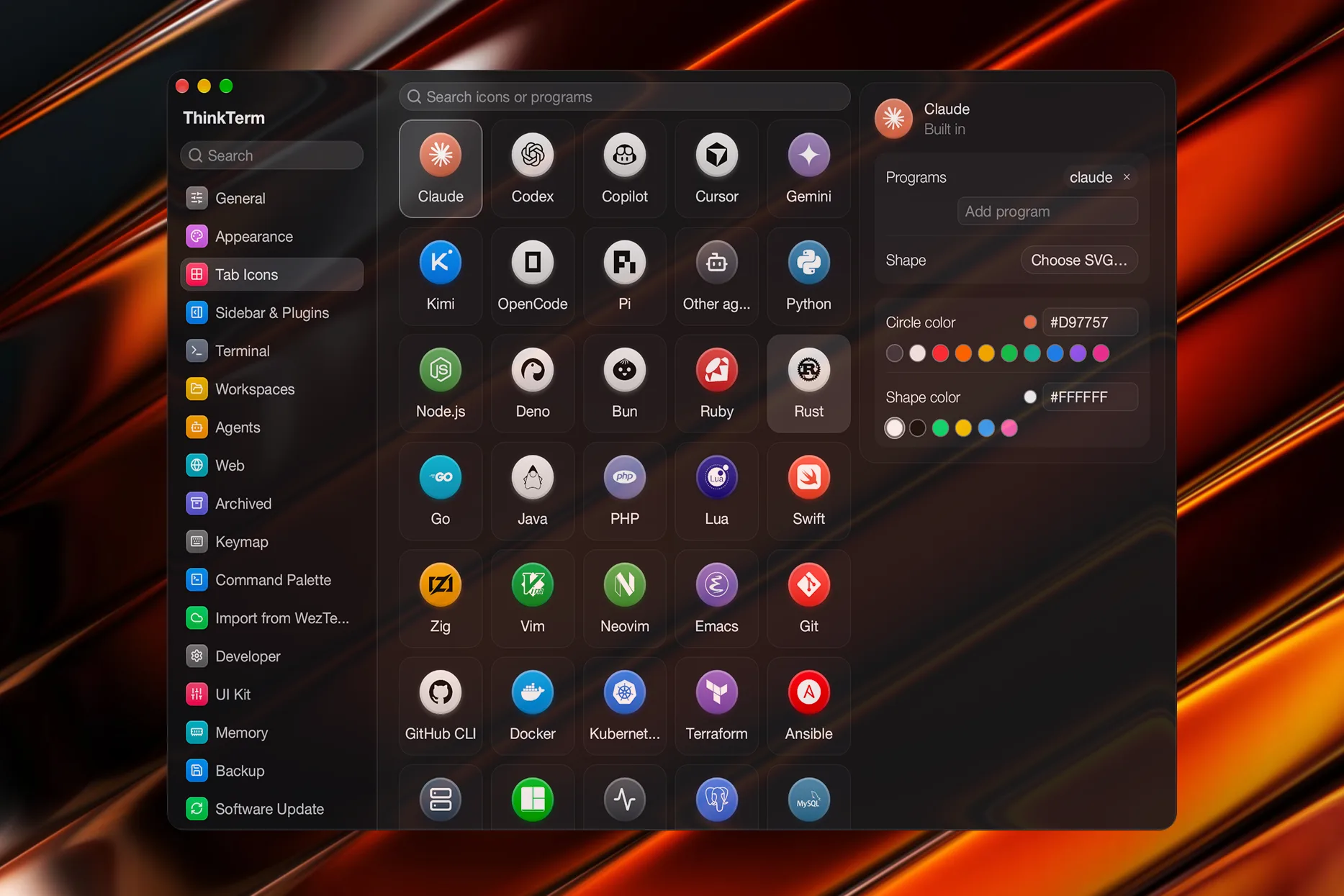
Each pane tab carries an icon for what that pane is running: Claude Code, Codex, Python, Neovim, Docker, an SSH session, and so on, with a plain terminal mark for a shell or anything no icon claims. While the pane is working the icon gives way to a spinner. The window tabs in the top row hold several panes that may each run something different, so they always show the terminal mark.
What a pane runs is worked out from the program in charge of its terminal, looked at when the pane prints or changes its title rather than on a timer, and only once a change has held for half a second — a command that flashes past does not flicker the icon. Launchers and interpreters are seen through: sudo vim shows Vim, and a script run by Python or Node shows what the script is called before it falls back to the interpreter. Panes on a ThinkTerm Connect server are observed by that server and reported to every client, so a remote tab shows the same icon a local one would.
Over plain SSH the program in charge locally is ssh itself, so the tab can only show the SSH icon. Detect remote programs, in a plain SSH host's settings, lets the remote shell say what it is running instead: on the next connection ThinkTerm adds one line to the host's bash or zsh startup files, and turning it off removes that line on the connection after. Other login shells are reported as unsupported and left untouched.
What that line does is set the WEZTERM_PROG user variable to the command line before each command and clear it at the prompt, so a shell it does not cover, such as fish, can report its programs the same way by doing the same. The report counts only while the terminal is on another machine; for a local program, what ThinkTerm sees running wins.
Settings › Tab Icons turns the icons off, which puts the terminal mark back on every tab, and holds the icons themselves as a searchable grid of cards. A card lists the program names it answers to, and its shape and colours can be changed: pick an SVG, or drop an .svg file on the card, and set the circle and glyph colours. An imported SVG may be up to 256 KB; ThinkTerm keeps a copy in ~/.config/thinkterm/tab-icons/, named by its hash, so moving or deleting the original does not lose the icon. A built-in card can be reset to how it shipped; cards of your own, up to 64, can be added and deleted. A program name belongs to one card at a time, so adding it to a card takes it off whichever card had it before. The terminal card is fixed and is not shown there.
WezTerm's tab bar
ThinkTerm's own tab row stays at the top of the window whatever the configuration says. WezTerm's tab bar options — enable_tab_bar, use_fancy_tab_bar, tab_bar_at_bottom, hide_tab_bar_if_only_one_tab and the rest — drive a separate one-row bar inside the terminal area instead, under the pane tabs or along the bottom edge.
With use_fancy_tab_bar = false that bar shows WezTerm's retro tabs, and format-tab-title and the tab bar colours apply to it. With the default fancy bar it stays away until status text is set, for example with window:set_right_status, and then keeps its row, so status that comes and goes does not keep resizing the terminal. enable_tab_bar = false removes it entirely.
Live Overview
The tab bar cannot tell you which of a dozen sessions is doing something. The Live Overview can: it lays every live Thread out as a card, grouped under the Space it belongs to, up to five columns wide.
Each card shows that terminal as it is right now, under a floating capsule naming the Thread and the command it is running. The capsule also carries one dot for every tab in the Thread's workspace, across all of its windows: blue when a command is running in that tab, brighter when output has arrived since the card last showed it, faint when it is idle, and largest for the tab the card is showing. Hovering a dot previews that tab on the card; clicking it opens the Thread on that tab. Past six tabs the dots fold to three and a count, and resting the pointer on them opens the row out.
Machines that are currently offline stay in the grid rather than disappearing from it, so a Space does not empty out when a laptop sleeps.
Closing a card asks first when something is still running there, because it ends every split pane and running program in that terminal.
Two sets of colours
ThinkTerm paints two palettes, and it is worth knowing which is which.
The colours your programs draw with are the terminal's: WezTerm's colors and color_scheme, documented upstream. ThinkTerm adds a way to pick the scheme outside the config file, and a default that goes with a light interface, and both can stand in front of what the file says.
Settings › Appearance › Effective Color Scheme shows the scheme the terminal is painted in. Clicking it opens the command palette's Change Theme list in a terminal window, which repaints the terminal as you move through it. A scheme picked there, or from Change Theme in the palette directly, is saved in settings.json, applies to every window, and wins over color_scheme in the config file — so an edit to that line seems to do nothing until Use configured default, at the top of the same list, hands the choice back to the file. colors in the config file is still laid over whichever scheme is in force.
With nothing picked, a light interface paints the terminal in Apple System Colors (Light), unless the config file names a scheme or sets colors itself, so a light window does not come with text chosen for a black background. A dark interface leaves the config file in charge.
The colours ThinkTerm draws around the terminal — the sidebar, the tab bar, the strip above each pane, Settings, the menus — are its own, and ui_colors overrides them slot by slot; the slots are listed in Configuration. Settings › Appearance › Theme offers four modes: System, Light, Dark, which is the default, and Follow terminal colours, which moves the interface onto the background of whatever colour scheme the terminal is using. Under Follow terminal colours no scheme is picked for you: there the scheme decides the interface, not the other way round.
Terminal text can be held to a minimum contrast against its background, so a scheme that puts dark grey on black stays readable. Settings › Terminal › Minimum text contrast offers 3:1, 4.5:1 and 7:1, and is off by default, because raising contrast also flattens what a program dimmed on purpose — a disabled menu entry, the empty half of a progress bar, a comment. Left off, WezTerm's own text_min_contrast_ratio option decides, and that is unset unless you set it in the config file; a ratio chosen in Settings wins over it.
Interface text sizes
ThinkTerm's own text is sized apart from the terminal's. Settings › Appearance › Typography has a stepper for each of six places, from 10 to 28, with a small picture of the window above them that lights up the part a row applies to:
| Setting | Sizes |
|---|---|
Settings UI Font Size | The Settings window |
Home Font Size | Home and the main content area |
Right Sidebar Font Size | Files, Notes and Snippets; follows Home Font Size until set |
Workspace Sidebar Font Size | The sidebar on the left |
Tab Bar Font Size | The window tabs along the top |
Pane Header Font Size | The strips of pane tabs |
Settings UI Font Weight sets how heavy the Settings window's text is, from 300 to 800 in steps of 100. Each row has its own reset. The terminal's font and size are on Settings › Terminal and in the config file — see Configuration.
App icon
Settings › Appearance › App Icon switches the icon the running app shows in the Dock and the app switcher between Simple, the default, and Classic. It works on macOS only.
Scrolling
The scrollback moves by the pixel rather than by the row: a trackpad or a touch drag follows your fingers instead of jumping a line at a time. Settings › Terminal › Scrolling switches between Smooth, which is the default, and Stepped, which moves a whole line at once.
Every pane draws a thin scrollbar over its right edge while it is scrolling and fades it out shortly after — not only the focused one. It can be dragged. Settings › Terminal › Scrollbar turns it off. enable_scroll_bar = true in the config file replaces it with WezTerm's own scrollbar, a gutter beside the focused pane, whatever that switch says.
Bottom quote
Settings › Terminal › Bottom Quote shows a short line of text in the lower-right corner of the terminal area. It is off by default. It takes no room from the terminal: it is drawn in the gap left below the last whole row, and where that gap is too thin — a window sized to an exact number of rows — nothing is shown. Quote Font Size changes its size without changing the terminal's layout.
The quotes come from ~/.config/thinkterm/bottom_quotes.json, a list of objects with a text and an optional author:
[
  { "text": "Ship the small version first.", "author": "A colleague" },
  { "text": "Read the error message." }
]
The file is created with a starter list the first time a quote is shown, and Quotes file › Open opens it. An edit is picked up once the file is saved. Quote Rotation goes through the list in order with Sequential, or picks one with Random; Quote Interval sets how often it changes, from 1 minute to 24 hours and an hour by default. The change follows the clock, so every window shows the same quote. Reset Quotes JSON puts the shipped list back over the file, and asks for a second press first, since whatever you wrote there is lost.
Images in the terminal
Programs can draw pictures in the terminal with the Kitty graphics protocol, iTerm2's inline images or Sixel, as they can in WezTerm.
The terminal also keeps the newer parts of the Kitty protocol — Unicode placeholders, images placed relative to other images, and animation — but the desktop window does not draw those yet. A terminal opened in a browser does; see Web. The browser, for its part, does not show a PNG or JPEG sent through iTerm2's protocol.
Each pane keeps up to 128 MiB of Kitty image data, set by kitty_image_memory_budget_mib, where 0 means no limit. Past it, images that are not on screen go first, oldest first; if the ones on screen alone exceed it, the least recently placed are taken off the screen too, never the newest. One animation is held to 256 MiB at most, or the budget if that is smaller.
Recording masks
When you are recording or sharing your screen, a recording mask covers part of a terminal with an opaque black rectangle. Right-click a terminal and choose Edit Recording Masks… — if the program in it captures the mouse, hold Shift while right-clicking. Drag empty space to draw a mask, drag a mask to move it, and drag its lower-right corner to resize it. Done, or Escape, puts the terminal back to normal input; Clear Recording Masks on the same menu removes them all.
Masks belong to one pane, up to 64 of them, and stay at fixed positions within it: they do not follow the text when it scrolls, so check the recording after scrolling or rearranging the window. They follow the pane between windows and appear on its Live Overview card. They exist only in this copy of ThinkTerm — other clients attached to the session never receive them — and are lost when the pane closes or ThinkTerm quits.
A mask covers the picture, not the content. The text underneath is still in the terminal, in what you copy, in logs, and on every other client attached to the same session.
The right-hand panels
The panel to the right of the terminal holds Files, Notes and Snippets, described in Files and Notes, and the Agents panel described in Agent Status. Installed plugins can add panels of their own after these — see Plugins. Snippets is itself a built-in plugin.
Settings › Sidebar & Plugins turns each panel on and off and lists the installed plugins. With every panel off, the right sidebar itself goes away.
Put away, the right sidebar comes back the same way the left one does: rest the pointer on the right edge of the window, or on its button, and it slides out over the terminal without resizing it.
Where the window opens
Settings › General › Restore Main Window Frame reopens the main window at the size and position you last left it, on macOS and on Windows.
Renderer
Settings › General › Renderer chooses between WebGPU, the default, and OpenGL, for terminal windows and the Settings window alike. The change takes effect when ThinkTerm restarts.
If WebGPU cannot start on the machine — no usable Metal, DirectX 12 or Vulkan adapter — the window opens on OpenGL instead of failing to open, so a bad choice never locks you out of Settings to undo it. Choosing OpenGL skips the WebGPU attempt entirely.
Related
- Spaces, Projects and Threads — the workspace the sidebar holds, and its menus
- Keyboard and Commands — shortcuts and the command palette,
Change Themeamong its groups - Agent Status — the status each Thread carries, and the Agents panel
- Files and Notes — what the right-hand panels hold
- Plugins — panels that installed plugins add
- Remote — SSH hosts and ThinkTerm Connect, where remote tab icons come from
- Web — the same terminals in a browser, and
Frontend access - Configuration —
ui_colors,text_min_contrast_ratio, and where the Settings window writes