
Remote
Documentation in progress
Some sections are still incomplete.
A remote workspace in ThinkTerm is meant to feel like a local one. Sessions are held by a multiplexer server rather than by the window in front of you, so closing a laptop, moving to another machine, or losing the network does not end the work. The same multiplexer can hold your local terminals as well, so most of what follows is not only about machines you reach over a network.
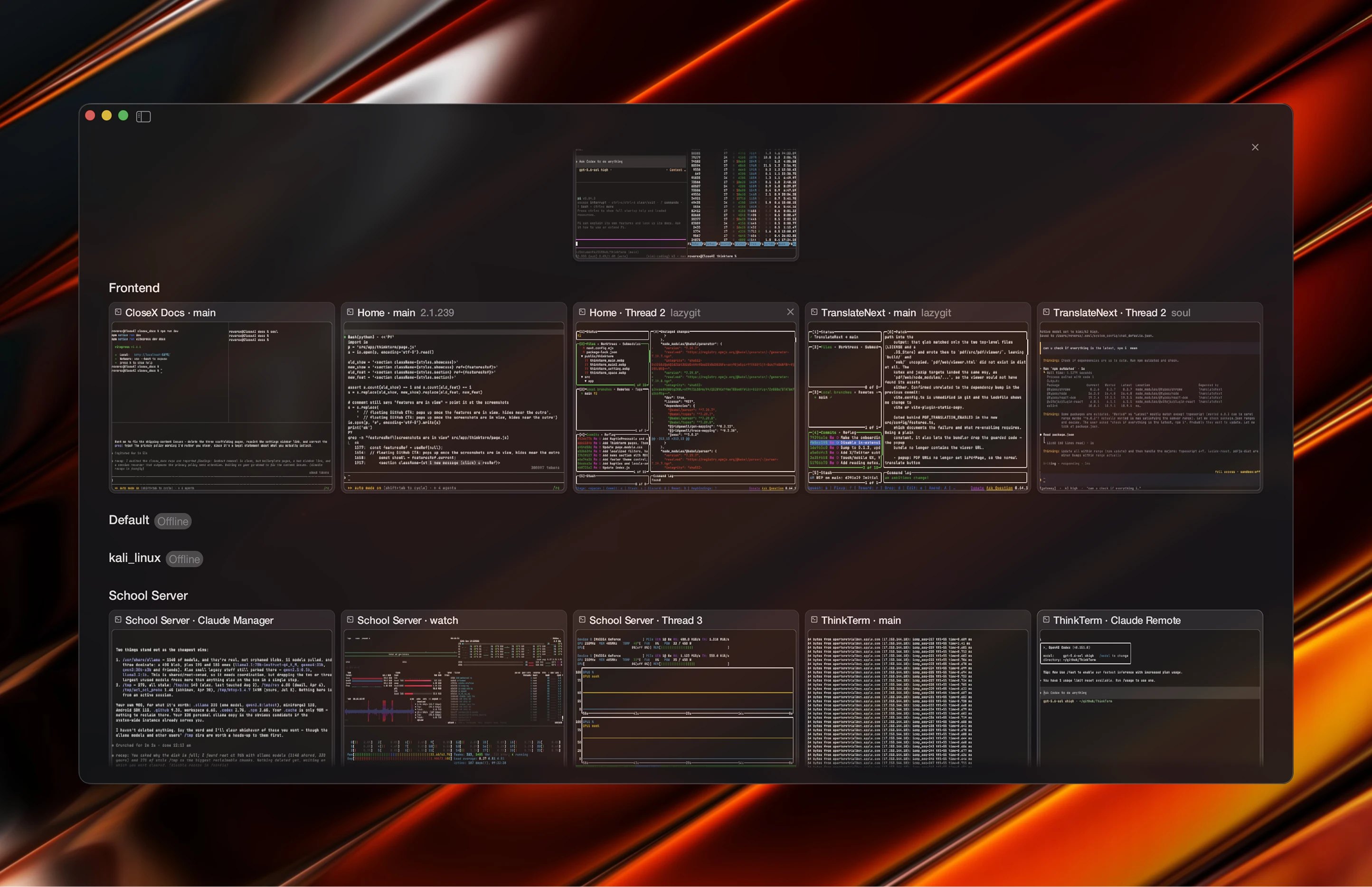
The SSH host book
ThinkTerm keeps its own list of hosts, stored separately from your system SSH configuration. Alongside it, the hosts defined in ~/.ssh/config are shown as a read-only view — ThinkTerm reads that file but never writes to it.
Each host in ThinkTerm's own list can record a username, an identity file, arbitrary SSH options, a default workspace, and a saved password. Operating-system detection is on by default, so a connected host can report which distribution it is running.
The Remote Hosts page
The list lives on the Remote Hosts page, opened from the button at the foot of the sidebar or the Remote Hosts... command; Add Remote Host… in the Space menu opens it on a blank host. While the search box is empty, a card at the top explains ThinkTerm Connect and has an Add a Server button. Your own hosts come first, under Hosts. The Tailscale group follows with the machines of your tailnet — see The built-in tailnet — and then the ones from ~/.ssh/config in a From your SSH config (n) group, which can be folded away and opens by itself while you search. The search box matches a host's name, address and user.
Under each name a card shows where it connects. A ThinkTerm Connect host is drawn in blue, as a server, with its address alone. Any other card adds how it connects, SSH or Mosh, and has a button towards Connect: Switch to Connect on one of your hosts, which changes it on the spot, and Add with Connect on one from ~/.ssh/config, which opens a new host filled in from it.
Selecting one of your hosts opens it in the editor beside the list. Drag the editor's left edge to make it wider or narrower; ThinkTerm remembers the width. The groups, top to bottom:
| Group | Holds |
|---|---|
Connection | Name, Network, Host, Port (22 for a new host), Other addresses, User |
Connect with | Three cards, one chosen: ThinkTerm Connect, SSH and Mosh |
Authentication | Password, Identity file |
Session | Workspace, Detect OS, Connect Files automatically, Detect remote programs for plain SSH, and Mosh server command while Mosh is chosen |
Advanced | Any other SSH option, one + Add option at a time |
A new host starts on ThinkTerm Connect, marked Recommended, with Detect OS, Connect Files automatically and Detect remote programs on. Connect Files automatically is off for every host saved before it existed; on, the Files panel connects as soon as a terminal on this host is beside it, without waiting for Connect — see Remote files over SFTP.
Network is System or Built-in Tailnet; see The built-in tailnet. Other addresses lists more places the host answers — a LAN name, a Tailscale name, a public address with a forwarded port — separated by commas or spaces, each a host or host:port; without a port, Port applies. Connecting tries Host first and then the others in turn, 0.3 seconds apart, or at once when one has failed. The first to answer carries the connection, and ThinkTerm signs in once, on it. The host key is checked against Host whichever address answered, and an address whose server shows a different key than the one on record is passed over as some other machine. The address that got through is tried first on later connections for an hour.
On a saved host, Network, the choice under Connect with and the three switches (Detect OS, Connect Files automatically, Detect remote programs) are saved the moment you click them. What you type waits for Save, and Cancel leaves the choices made. A saved host has Connect at the top of its editor; a new host has Save and Save & Open, which saves it and connects. A host is identified by its network, address, user and port, so a second host with the same four is refused with a message pointing at the one that already has them — and so is moving a host to the other network when it is already saved there.
A card's menu offers Connect, Edit Host…, Duplicate and Delete “name”. Duplicate opens a new host filled in from the original — password and options included — except the address, which has to differ, under the name with copy added. Deleting needs a second click, on Delete Permanently, because it also deletes the host's Threads and any Spaces mirrored from it. Those Spaces are only removed from this device: the server keeps them, and adding the host back brings them back. A host from ~/.ssh/config has nothing of ThinkTerm's to edit or delete, so its menu offers Connect alone.
Renaming a ThinkTerm Connect host, or moving it to the other network, does not cost it its Spaces: they follow the host to its new name. If the old connection is still up, they stay with it until it ends.
Three ways to connect
A host can be opened over any of the following, chosen under Connect with in its editor.
Plain SSH — a direct session. When the connection drops, the session ends with it.
Mosh — a roaming UDP session that tolerates changing networks and sleep. ThinkTerm starts the remote end with mosh-server new -s -l LANG=en_US.UTF-8 by default; the command is editable per host, which is what you need when mosh-server sits somewhere unusual on the remote machine.
ThinkTerm Connect — a persistent multiplexer, and what a new host starts on. This is the one that gives you the full workspace: the server owns the session tree, so several clients can attach at once and see the same structure, and a client going away leaves everything running.
What the host needs
Plain SSH needs nothing beyond an SSH server.
Mosh needs Mosh at both ends, and ThinkTerm ships neither half. It logs in over SSH, starts mosh-server on the host with the host's Mosh server command, and then runs mosh-client on this machine against what the server answered. When it cannot do that itself — no saved password, a host key to confirm, the command failing — it falls back to running the mosh command in the terminal, so that you can answer whatever it asks. That fallback carries the host's port and identity file, but not its other SSH options or a saved password. Either way, mosh-server has to be installed on the host and Mosh's client on this machine.
ThinkTerm Connect needs ThinkTerm on the host. The server variant is enough, and needs no root:
curl -fsSL https://raw.githubusercontent.com/RoversX/thinkterm/main/install.sh | sh -s -- --serverThere is no service to set up. Connecting runs thinkterm cli --prefer-mux proxy on the host — the copy in ~/.local/bin first, then whatever thinkterm is on the PATH — and that starts thinkterm-mux-server --daemonize when no server is running yet. You can start one yourself the same way, before anyone connects.
A host that has no ThinkTerm yet is not a dead end. Connecting looks for ~/.local/bin/thinkterm, then for thinkterm or wezterm on the PATH; finding none, the connection window says so and asks Install it? [y/N], showing the command it would run — this version's installer, fetched from GitHub and run on the host as the ssh user, under ~/.local, without root. Answer y and it installs, then connects. Anything else prints the command for you to run yourself and, when you connected from Remote Hosts, opens the host over plain SSH this once. The host stays a Connect host and is asked about again next time. Where nothing can be installed it says why instead of asking: this app is a development build, GitHub has no release of its version yet, or the host cannot take a release — a Linux CPU other than x86-64 or ARM64, musl libc, or a glibc older than the release needs.
On a Linux host, logging out of the last SSH session can take the server with it, depending on how the system is set up to treat processes a session leaves behind. loginctl enable-linger $USER is the step the installer suggests for keeping it running.
The two ends have to run the same version. When they do not, ThinkTerm offers to fix it from this side; see Updating a remote server. Install covers the server variant in more detail.
The built-in tailnet
ThinkTerm can join a Tailscale network itself, without the Tailscale app. The machines of the tailnet are then listed on Remote Hosts, and a host set to Built-in Tailnet is reached through it. It is available on macOS and Linux; elsewhere the Tailscale group is not shown and Network says the built-in tailnet isn't available on this system.
Turning it on. While it is off, the Tailscale group shows a card, Reach the machines in your tailnet, with Turn On. That opens the Tailscale panel in place of the host editor, and the gear at the end of the group's caption opens it again at any time; so does searching Settings for Tailscale, which finds Tailscale → Remote Hosts. The caption says how it stands: Off, Connecting…, Needs you to log in, Connected, Not connected or In use elsewhere.
Logging in. A computer joining for the first time shows Needs you to log in; Log In opens the approval link in a browser, which adds this computer to the tailnet. The panel's Log In group also has Open Login Link and Copy Link, for approving from another device, and Auth key (instead of the browser) for a key from your tailnet.
| Panel | Holds |
|---|---|
| Header | The switch that turns the tailnet on and off |
Status | Connected as name · address, or why it is not |
Log In | The approval link while one is waiting, and Auth key (instead of the browser) |
Connection | Control server — empty for Tailscale's own, or the HTTPS address of your Headscale — and Name in the tailnet, which is thinkterm- and four characters of the machine's key when left empty |
Log Out | Leaves and forgets this computer's identity and auth key. Shown only while there is something to forget |
A field is saved when you leave it. A new control server or name restarts the node, which ends the connections going through the tailnet. Turning the switch off leaves the tailnet but keeps the computer's identity, so turning it on again is the same machine. After Log Out the next join is a new one, and the old one stays listed in the tailnet until you remove it there.
The machines. Online ones come first, then the rest by name. A card shows a device icon — the maker's mark, or the distribution's logo for Linux — the name, and what it is and whether it is online, as in Mac · Online. Clicking a machine you have saved as a host selects it and opens its editor, as for any card, and a double click connects. Clicking any other opens a new host's editor with its name and address filled in, Network on Built-in Tailnet and the cursor in User; Save keeps it as a host like any other. A saved host stands for a machine when its address, or one of its other addresses, is the machine's name, its full tailnet name or its tailnet address.
Putting a host on it. Choose Built-in Tailnet under Network. The choice is greyed out, with a note saying why, until Tailscale is on; a host already on it keeps showing it. Every address of the host — Host and Other addresses — is then dialled through the tailnet, and never through the system network, even when it fails. Names are looked up among the tailnet's machines only, not in DNS, so use a machine's name, its full name or its tailnet address. Mosh uses the system network, so a Mosh host cannot be put on the tailnet and a tailnet host cannot be switched to Mosh; a host with ProxyCommand or BindAddress under Advanced cannot use it either. The same address on both networks is two hosts.
Where it runs. The node runs as a program of its own, thinkterm-tailnet, which the machine's session server starts while the tailnet is on and starts again if it stops. It ends with that server, or when you turn the tailnet off. If no session server is running when you turn it on, ThinkTerm starts one with no terminal in it for the purpose, whatever Keep local terminals in a background session server says; stopping the session server stops the node with it. Only one process holds the node at a time and every ThinkTerm process on the machine reaches the tailnet through it. In use elsewhere means another ThinkTerm process on this computer holds it.
A machine nobody sits at
thinkterm tailnet does the same from a shell, as the user whose session server holds the node — not with sudo.
| Command | Does |
|---|---|
thinkterm tailnet up | Joins and waits until it has, printing the approval link if one is needed. Options: --serve-ssh, --control-url URL, --hostname NAME, and --auth-key-stdin, which reads an auth key from standard input instead of approving in a browser |
thinkterm tailnet down | Leaves, keeping the identity for the next up |
thinkterm tailnet logout | Leaves and forgets the identity and auth key |
thinkterm tailnet status | Shows the settings, what the node is doing and the machines it sees |
--serve-ssh lets machines in the tailnet SSH into this one: the node hands port 22 of its tailnet address to this machine's own sshd, and takes nothing else from the tailnet. sshd sees those connections as coming from 127.0.0.1 or ::1, so any rule you have for local connections applies to them too. Only up --serve-ssh turns this on; up without it turns it off again, down and logout turn it off, and the switch in the panel never turns it on. While it is on, the panel says Machines in the tailnet can SSH into this one (thinkterm tailnet up).
What it keeps
The settings are in tailnet.json, next to the host book. The auth key and the node's keys in it are encrypted with the same secret.key as saved passwords, so the same limits apply to them. The machine's other ThinkTerm processes reach the node over a socket, tailnet.sock, beside the settings, which only your account can open. Joining talks to Tailscale's control server, or to the one you set under Control server.
Saved passwords
A password saved in the host book is encrypted at rest with AES-256-GCM. The key is kept in a separate file, secret.key, in the same directory as the host book.
On macOS and Linux that key file is created with mode 0600, so no other account on the machine can read it.
Be clear about what that does not cover. The mode stops other users; it does not stop anything running as you. A file sync, a backup job, or any program you launch reads a 0600 file without difficulty — and because secret.key sits in the same directory as the encrypted host book, whatever copies that directory carries away both halves and can decrypt at leisure. Keeping the key on disk rather than in the system keychain is a deliberate trade-off, and this is its cost.
Windows has no equivalent of that mode
On Windows the key and the host book are kept together under %LOCALAPPDATA%\ThinkTerm\ssh\, away from the rest of the workspace data — deliberately outside the roaming half of the profile, so that a domain sign-out does not carry your credentials to a profile server. An older install's copies are moved there as a pair the first time ThinkTerm needs them, never one without the other.
The file itself still gets no permissions of its own there: it inherits the ACLs of the directory it sits in. If several accounts share the machine, treat a saved password as readable by anyone who can reach that folder.
If you would rather not store passwords at all, use an identity file instead — it is a per-host field in the same editor.
Disconnecting is not deleting
Removing a remote Space from your sidebar and deleting it are separate actions, and ThinkTerm keeps them separate on purpose. A remote Space's menu has up to three entries for it, grouped under its name:
| Entry | What it does |
|---|---|
Disconnect (Server Keeps Running) | Drops this device's copy of the Space. The server keeps running and every session in it stays alive; the Space comes back the next time this device connects |
Delete on the Server (All Devices) | Deletes the Space on the server, so it disappears from every device |
Delete & End Remote Sessions | Deletes it on the server and ends the sessions running in it. Offered only while the server is connected |
Closing a laptop needs none of them: the server carries on, and the next connection picks up where you left off.
After an unexpected network drop, ThinkTerm reconnects on its own and restores the session. While it is retrying it reports itself as connecting rather than as failed.
Those automatic retries are bounded. After about two minutes ThinkTerm stops trying and waits for you to press Reconnect. What that clock measures is how long the workspace has been unusable, not how long the network has been down — a link that keeps coming back only for the restored session to be refused reaches the same limit, and only a session that genuinely comes back clears it. A session that did come back and worked — or simply stayed up longer than those two minutes — starts a fresh clock when it next drops, rather than inheriting the old one. Nothing is torn down when it gives up — the domain stays attached and every window and pane survives — but an outage longer than that needs one manual step to come back from. A local session server is the exception: it is never given up on.
Surviving an upgrade
Updating a server used to mean stopping it, and stopping a server ends every session it holds. That is no longer the only way.
A running server can hand its panes to a new binary directly. The new process takes over the pseudo-terminals, the processes attached to them, the terminal contents, and the window and tab structure, then starts answering on the same socket. Clients see a single reconnect and rebind by id. Nothing inside the panes restarts.
Two kinds of pane stay behind: ones whose process has already exited, and ones that are themselves a channel to somewhere else — an ssh or tmux pane opened as its own domain. Those are pruned rather than carried across.
This is the mechanism behind Keep sessions when updating a remote server. Updates covers the rest of that flow.
Local sessions in a session server
The multiplexer is not only for remote hosts. Under Settings › General › Session server:
Keep local terminals in a background session server — local terminals run in a mux server on this machine and survive quitting, crashing or updating ThinkTerm. Takes effect the next time ThinkTerm starts.
With this on, quitting ThinkTerm stops being the thing that ends local work, and Thread layouts are carried across rather than rebuilt. It is on for a new install. An install that already had settings before it became the default keeps them, and stays off until you switch it on. Switching it takes effect at the next launch rather than immediately.
It works on Windows too, where it promises slightly less: local terminals survive quitting and crashing ThinkTerm, but installing an update stops the server and ends what is inside it. Handing the panes to a new binary, described above, is a Unix mechanism and has not been ported.
It is also what makes local terminals reachable from a browser, since the browser client is served by a mux server and never by the GUI's own multiplexer. See Web. A page in the browser can also be allowed to open other machines through this server, with the server signing in to them over SSH; see Reaching other machines.
Running through a server costs less than it might, because the server knows when its client is on the same machine. On macOS and Linux it recognises the process at the other end of its socket, and sends that client its data uncompressed and through a larger buffer — which is what keeps a large picture or a fast animation in a local pane from costing both processes far more than drawing it.
Ending it on purpose
Because the server outlives the app, there is a deliberate way to end it: thinkterm cli stop-server, the Quit and Stop Session Server command — in the ThinkTerm menu on macOS, beside Quit, and in the command palette — or Stop the session server under Settings › General › Session server, a row that appears only while a server is running and wants a second press before it acts. All three do the same thing — every terminal in the server ends and its windows close, and the next terminal you open starts a fresh server.
Moving between devices
Several clients can attach to one ThinkTerm Connect server at the same time. One device at a time drives the frontend, and that right — the handoff lease — belongs to a device rather than to a process: a screen identified by its host and user.
That distinction is what makes a restart cheap. When the device that was driving disconnects and comes back — the GUI restarted, a laptop's SSH re-established — it is not treated as a second screen asking for a turn. It takes the lease back on its first viewport, with no click.
Any other device still has to take over explicitly — but connecting on purpose is itself that act. Pressing Connect, or switching into a Space whose server is not attached yet, takes the lease as part of the open, so you are typing into that terminal from its first frame. A reconnect that happens in the background never does, and a renderer that merely stayed connected never inherits the lease. Once some device has claimed it, the previous owner returning does not take it back. remote_mux_auto_claim_on_open turns the automatic half of that off if you would rather claim by hand.
A terminal another device is driving is not hidden from you. It is drawn as that device sees it, with a note in the corner naming the machine that holds it and saying that a click or a scroll takes it. Until you do, keystrokes, drags and divider resizes go nowhere rather than landing somewhere you cannot see.
A browser counts as a device here too, identified by the name of the link it came in on rather than by a host and user — two tabs opened from the same link share one turn, and thinkterm cli list-clients shows them under that name.
All of this describes the server's default mode, B · Handoff (exclusive). Frontend access in a terminal's right-click menu switches it to A · Shared (tmux-like), where there are no turns: every attached device can type into every terminal at once, as with tmux. The mode belongs to the server rather than to one terminal or one device, so switching it changes it for everyone attached.
What runs on the far side
A tab can show an icon for the program running in its pane. On a ThinkTerm Connect host the server watches its own panes and tells every attached client what each one runs, so a remote tab is labelled as a local one would be.
Over plain SSH ThinkTerm sees no process on the far side — locally, the only thing running is ssh — so the tab can say no more than that unless the remote shell reports what it runs. Each host in ThinkTerm's own list has a Detect remote programs switch for this. It is on for a new host and off for a host saved before it existed, and offered for plain SSH only: ThinkTerm Connect does not need it, and Mosh does not pass the reports on.
Turning it on changes nothing until the next connection. Then ThinkTerm copies its shell integration into ~/.config/thinkterm/ on the host over SFTP, and adds one marked line to the startup files the login shell reads — .zshrc, wherever ZDOTDIR puts it, or .bashrc and the login file bash reads. Nothing else on the host is touched. Every file is checked for write access before any is changed, and a half-done install is taken back. Turning the switch off removes the line at the next connection in the same way.
Only bash and zsh are supported. A host whose login shell is something else, such as fish, is reported as such under the switch and left with nothing installed. A failure is shown there too, naming the file that could not be written, and the next connection tries again. What a connection achieved is recorded with the host, so the next one does not repeat it.
Once it is in place, the shell reports each command line as it starts and clears it at the prompt. Shells opened from then on report; ones already open do not. A command behind sudo or a leading VAR=value is named by the program it actually runs, and the same report is read when you type ssh into a local pane, as long as the shell at the other end has the integration loaded.
What an attached server may describe
A server you attach to describes its own Spaces and nothing else. A Space it names that is already yours from somewhere else — your local default, or another domain — is dropped rather than allowed to replace the projects and layouts filed under that id, and a project naming a Space the server did not send is dropped rather than quietly re-homed into your default Space. Nothing you already have changes because a server claimed an id that was taken.
What was done to make remote feel local
These behaviours apply to sessions on a ThinkTerm Connect domain:
- Typing does not wait for the round trip, once the wait would be visible. Predictive local echo puts keystrokes on screen without waiting for the server, but only once the measured round trip reaches the threshold — 100 ms by default. Below that the server's own echo already arrives fast enough, so prediction stays off. It is off entirely for local sessions.
- Splits are not a local-only luxury. Split trees, the second-level tab bar, drag-to-split, and dragging a divider to resize all work remotely and behave as they do locally.
- Sizes do not jitter. Dragging a divider does not cause snap-back, squeeze, or a resync storm.
- Dividers resize at the speed the link allows.
Settings › Terminal › Remote Split Resizechooses when a divider drag reaches the server.Auto, the default, sends sizes continuously over a fast connection and only the final size over a slow one;Livealways sends them continuously, andOn releaseonly once you let go. - The scroll wheel is accurate. In mouse-mode programs such as
vimandlessthe original notch count is preserved, so scrolling is neither too fast nor too slow. - Client state stays yours. Focus and selection are locally authoritative and are not scrambled by server echo. Each client holds its own palette, so changing the theme on one device does not change it on another.
- Images travel to remote panes. Pictures and kitty-protocol animations render in a remote pane as they do locally, and a picture still being streamed keeps its place on screen instead of losing every frame.
Related
- Web — opening the same sessions from a browser
- Files and Notes — browsing and transferring files on a remote host
- Configuration — where the host book and its key are stored
- Install — the server variant for a host
- Updates — bringing a remote server to the same version