
Spaces, Projects and Threads
Documentation in progress
Some sections are still incomplete.
ThinkTerm files every terminal under three layers. A Space is a working context, a Project is a folder inside it, and a Thread is a saved arrangement of tabs and split panes inside that. The sidebar shows one Space at a time, with its Projects and their Threads beneath.
The three layers
| Layer | What it is | What you start with |
|---|---|---|
| Space | A working context. It lives on this machine, or on a ThinkTerm Connect server, where every device attached to that server sees it. A Space can have a Notes Vault, shared by its Projects. | Default |
| Project | A folder. It is named after the folder when added, and new terminals in it open there. | Home, at ~ |
| Thread | Tabs and split panes, kept under a name. | main |
Default can be renamed, but not deleted, so there is always somewhere for a window to land. Every new Space starts the same way, with a Home Project at ~ holding a main Thread.
New Spaces are called Space 2, Space 3 and so on, and new Threads Thread 2, Thread 3, counting from the number already there. Two Threads in one Project cannot share a name: giving a Thread a name another one in its Project already has adds a number, review 2.
One Space per window
A window shows one Space, and a Space is shown by one window. A Space open in another window is listed in the Space menu as my-space (occupied) and cannot be chosen until that window moves elsewhere or closes.
A new window takes the local Space you used last if no other window has it, otherwise the first free local Space, and otherwise creates a new one. It never opens on a Space that lives on a server. Those are opened on purpose, from the Space menu or Remote Hosts.
The sidebar
The top of the sidebar is the Space button: the current Space's name, with an icon that turns into a spinner while its server is connecting and a warning mark while it is disconnected. Clicking it opens the Space menu. Under it are a New Thread button, which adds a Thread to the Project you are in, and the notifications bell.
Below those come the Pinned section, if anything is pinned, and the Workspaces heading, whose + adds a Project. Each Project row has its own + for a new Thread, and folds its Threads away under a chevron.
The footer holds Settings and three buttons:
| Button | What it opens |
|---|---|
Live Overview | Every live Thread as a card — see The Window |
Remote Hosts | The host book — see Remote |
Find Thread | The command palette's Find Thread list |
Find Thread lists every Thread in every Space, under the name and path of its Project, with pinned and recently used Threads first. The sidebar shows one Space and leaves archived Projects out; this list does neither, so it is the quickest way to reach a Thread anywhere. Threads of archived Projects come last, marked (Archived).
The Space menu
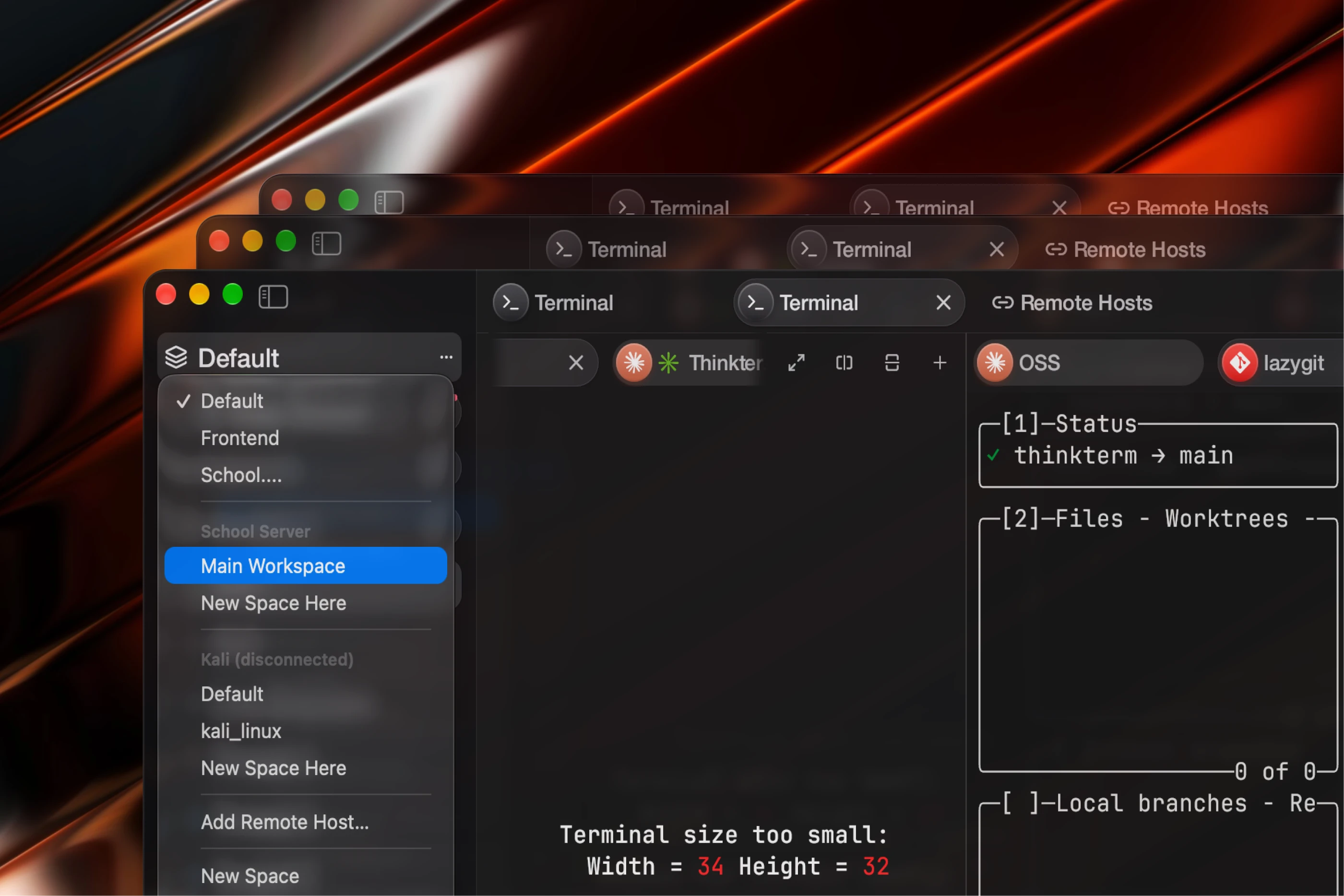
| Entry | What it does |
|---|---|
| The local Spaces | Switch this window to that Space. The current one is ticked. |
| A server's name, then its Spaces | One heading per ThinkTerm Connect server, saying whether it is (connecting…), (reconnecting…) or (disconnected), with that server's Spaces beneath |
New Space Here | Under a server's heading: creates a Space on that server |
Add Remote Host… | Opens the host editor for a new host |
New Space | Creates a local Space and switches to it |
Rename “my-space”… | Edits the current Space's name in place |
Delete “my-space” | Deletes the current local Space — see Deleting |
Remove “my-space” | For a Space on a server: three ways to be rid of it — see Deleting |
Remove Other Space | The same for any other Space that is not Default and not open in another window |
Creating
A Space. New Space creates it, switches the window to it, and opens its name for editing, so you can name it straight away. New Space Here, under a server's heading, creates the Space on that server instead: every device attached to the server sees it appear. It starts with a Project named after the server and a main Thread.
A Project. The + beside Workspaces. In a local Space it opens the system folder picker. Choosing a folder that is already a Project in this Space opens that Project rather than adding a second one, and brings it back if it was archived. In a Space on a server there is no local folder to pick, so a list offers the directories ThinkTerm knows on that server — where its terminals are, the paths of its other Projects, and ~ — and you can type to filter it, or type a path such as ~/my-project or /srv/app.
A Thread. New Thread at the top of the sidebar, the + on a Project's row, or New Thread in the Project's menu. Its terminal opens in the Project's folder.
Renaming
Rename Project…, Rename Thread… and Rename “my-space”… all edit the name where it is shown in the sidebar. Enter keeps the new name, Escape abandons it, and clicking anywhere else keeps it. A name left empty changes nothing.
Renaming a Project changes only what the sidebar calls it. The folder on disk keeps its name.
The Project menu
Right-click a Project's row:
| Entry | What it does |
|---|---|
Rename Project… | Edits the name in place |
Reveal in Finder | Opens the folder in the file manager — Show in File Explorer on Windows, Show in Folder on Linux |
Grant Folder Access… | macOS only. Runs the folder picker that gives ThinkTerm access to the folder — see Configuration |
New Thread | Adds a Thread |
Collapse / Expand Threads | Folds the Project's Threads away or brings them back; remembered across restarts |
Archive Project | Puts the Project away — see Archiving a Project |
Remove Project | Deletes the Project and its Threads — see Deleting |
The Thread menu
Right-click a Thread's row. Resting the pointer on a row also shows a pin and a bin at its right-hand end.
| Entry | What it does |
|---|---|
Connect Thread / Disconnect Thread | Only for a Thread on a plain SSH or Mosh host — see SSH hosts in the tree |
Pin Thread / Unpin Thread | Moves the Thread into or out of Pinned |
Rename Thread… | Edits the name in place |
Delete Thread | Deletes the Thread and ends what runs in it — see Deleting |
Mark as Unread | Lights the Thread's dot until you next open it |
Add to Space | Shows the Thread in another Space as well — see Thread references |
Move to Space | Moves the Thread to another local Space |
Pinning
A pinned Thread leaves its Project's list and joins the Pinned section at the top of the Space, which gathers the pinned Threads of every Project in it. Unpinning puts it back under its Project.
Pinned Threads cannot be reordered by dragging. The pins of an archived Project are kept but not shown, and reappear when the Project is brought back. In a Space on a server the pin is stored on the server, so every device sees it.
Unread and status
Each Thread row carries a mark for its state: running, needing your attention, done — it finished while you were not looking — or nothing, when it is idle. Agent Status describes how that is decided.
Mark as Unread lights a Thread's dot as a reminder to come back to it. Opening the Thread clears that, and clears a done mark as well. Both are saved, so they are still there after a restart.
The bell at the top of the sidebar collects the Threads that are done or need attention across every Space, each as Thread — Project · Space. Choosing one switches to its Space and opens it, which takes it off the list. A dot on the bell says the list is not empty, and pulses when something new arrives; what was already waiting when ThinkTerm started does not pulse.
Thread references
A Thread belongs to one Project in one Space, but it can be shown in other Spaces too. Add to Space lists the local Spaces that do not already show it; choosing one adds a reference there. This works for a Thread on a ThinkTerm Connect server as well, which is how one Space can hold work from several machines.
In the Space that holds it, a reference sits in a folder named after the Thread's own Project. Resting the pointer on the folder's header names the machine and the Space it comes from, and its + creates a new Thread in that original Project. Opening a reference opens the Thread itself, not a copy.
Its menu is shorter, because a reference stands for the Thread rather than being one:
| Entry | What it does |
|---|---|
Rename Thread…, Mark as Unread | Act on the Thread itself, wherever it lives |
Remove from This Space | Removes the reference; the Thread is untouched. The × on the row does the same. |
Move to Space | Moves the reference to another Space |
Go to Origin Space | Switches to the Thread's own Space and opens it there |
Pinning and deleting are not offered on a reference, since they would change the Thread while looking like they only touch the row.
When the machine a referenced Thread lives on is offline, the reference stays, dimmed, under the last name it was seen with. It goes away once that machine is reachable again and no longer has the Thread, or when its host is deleted from Remote Hosts.
References belong to this device. They are not sent to any server, so another device, a browser or the TUI attached to the same server does not see them.
Move to Space on a Thread's own row is a different thing: it rehomes the Thread. The Thread leaves its Project and joins the Project the target Space is on, and a terminal running in it comes along without being restarted. Only local Threads can move, and only to a local Space with a local Project; a Thread on a server runs on that machine and can only be referenced.
Reordering
Drag a Project's row to move it among the Space's Projects; reference folders take part in the same order. Drag a Thread to move it within its own Project — it cannot be dropped into another Project.
In a Space on a server, the order of Projects and Threads is kept by the server and shared by every device. The position of reference folders is this device's alone, like the references themselves.
Switching Spaces with a swipe
On macOS, a two-finger sideways swipe on the trackpad over the sidebar moves to the previous or next Space, sliding one page out as the other comes in. It passes over Spaces that are open in another window and Spaces on a server that is not connected; those are reached from the Space menu.
Archiving a Project
Archiving puts a Project out of the way without losing it. Its layouts are saved first, its terminals are closed, and its row leaves the sidebar. Its Threads, their layouts and their pins are kept.
When nothing is running in the Project, Archive Project acts at once. When something is, the menu entry becomes Archive Project…, which opens to say how many running panes will close (Closes 3 running panes; layouts are kept) and asks for Archive and Close Panes. Closing running programs is the only part of archiving that cannot be taken back.
A Space keeps at least one Project that is not archived. Archiving the last one is refused with The Space needs at least one live project; unarchive or add another first.
A Project in a Space on a server is archived on the server: its sessions there end, and every device sees it archived. That needs the server to be connected.
Archived Projects can be found in three places:
Settings › Archivedlists every archived Project in every Space, newest first, asmy-space · 3 threads · archived today.Unarchivebrings one back.Deleteturns intoConfirm, and a second click deletes the Project and its Threads for good.Show Archived Workspacesin the command palette shows the current Space's archived Projects, dimmed, at the bottom of the sidebar until you run it again or close the window. Clicking such a row does nothing. Right-click it forUnarchive Project, orDelete Permanently…, which says how many Threads will go and asks forDelete Project and Threads.- Adding the same folder again as a Project brings it back.
Unarchiving puts the Project back where it was. The programs that were running are not restored: its Threads reopen in their saved layouts, with new shells in the saved directories.
Archive Active Workspace in the command palette archives the Project you are in at once, without the count of running panes.
Deleting
| What | How | What it ends |
|---|---|---|
| A Thread | Delete Thread, or the bin on its row | Every program running in it |
| A Project | Remove Project | All of its Threads and everything running in them. The folder on disk is untouched. |
| A local Space | Delete “my-space” | All of its Projects and Threads and everything running in them. The window moves to Default, or to another free Space if Default is open elsewhere. |
| A Space on a server | Remove “my-space” | Depends on the choice — see below |
None of these asks for confirmation. Archiving a Project with running panes, and deleting an archived one, are the only steps in the sidebar that need a second gesture. If you might want a Project back, archive it rather than removing it.
A few deletions are refused, silently:
- the last Thread of a Project — remove the Project instead. A Project whose terminals run on another machine is the exception: for a plain SSH or Mosh host, or any Project in a Space on a server, deleting its last Thread removes the Project, and if it was the Space's only Project a
HomeProject takes its place; - the last Project in a Space that is not archived;
Default, and any Space open in another window, which are not offered.
A Space on a server can be got rid of in three ways, and they are worth telling apart:
| Choice | What happens |
|---|---|
Disconnect (Server Keeps Running) | This device stops showing the Space. The server keeps it, with every session in it running, and other devices keep seeing it. It comes back the next time this device connects to that server. |
Delete on the Server (All Devices) | The Space is deleted from the server, and disappears from every device. It does not end the programs running in it; the next choice does. |
Delete & End Remote Sessions | Ends every session in the Space on the server, then deletes it everywhere. Offered only while the server is connected. |
Remove Other Space offers only the first of these, as Disconnect “my-space” (Server Keeps Running), for a Space on a server that is not the current one.
Typing exit in the only pane of a Thread closes its terminal, not the Thread. The window moves on to the Thread in that Space you used most recently, or to a new one when there is none.
SSH hosts in the tree
What opening a host from Remote Hosts adds depends on how it connects — see Remote.
A plain SSH or Mosh host becomes a Project in the current Space, named after the host. Its Thread opens on a page with a Connect button rather than connecting straight away; a Mosh host starts connecting at once. Disconnect Thread ends the session and keeps the Thread, and Connect Thread starts a new one. Once ThinkTerm has detected which operating system the host runs, the Project shows its logo.
A ThinkTerm Connect host gets a Space of its own, the first time named after the host, holding a Project of the same name and a main Thread. A server can hold several Spaces; connecting again lands on the one this device used last. While the server is disconnected, a Reconnect row sits under the Space button.
A disconnected remote Space
A Space on a server can be looked at while the server is unreachable, but not changed. Its Spaces, Projects and Threads are the server's, and the copy on this device is not something to edit and reconcile later. Renaming, creating, pinning, marking unread, reordering, archiving and deleting are all refused, with a notification: example-host is disconnected. Reconnect and try again. Settings › Archived refuses in the same way, with That workspace lives on a disconnected server; reconnect first.
Disconnect (Server Keeps Running) works while disconnected, since it only changes this device.
After a restart
The structure is saved in workspace_threads.json, in the workspace data directory — see Configuration. It holds every Space, Project and Thread with their names, order, pins and unread and done marks, which Thread each Space last had open, and for each local Thread its layout: the tabs and splits, and each pane's directory, title and font size.
What comes back depends on the background session server:
- With it on, local terminals were never ended. ThinkTerm attaches to them again, and programs, scrollback and all are as you left them.
- With it off, quitting ended them. A Thread comes back as its saved layout, with a new shell in each pane's saved directory; the programs and their scrollback do not. The window rebuilds the Thread it opens on at launch, and the rest as you open them.
Threads in a Space on a server keep no layout here. The server holds the layout and the sessions, and reconnecting brings them back as they are.
If a Project's folder cannot be opened — moved, deleted, or refused by the system — its Thread shows a page saying so rather than quietly opening the terminal in your home folder.
ThinkTerm keeps copies of workspace_threads.json beside it:
- once per launch, before the first save, the previous file becomes
workspace_threads.json.bak1, and older ones move along to.bak5; - before a save that would drop a large share of what the file holds, and once per launch before the session server's first update is applied, the file is copied to a dated name such as
workspace_threads.shrink-<date>-<time>.json, keeping the latest ten of each kind; - a file that cannot be read is copied to
workspace_threads.unreadable-<time>.json. ThinkTerm then starts without it and writes nothing over the original for the rest of that session, so changes made in that session are not kept.
Those copies are for recovering from a fault. To move the workspace to another machine, or keep a copy of your own, use Settings › Backup — see Configuration.
Related
- The Window — the rest of the window around the sidebar, and the Live Overview
- Agent Status — the state each Thread carries
- Remote — SSH hosts, ThinkTerm Connect and the background session server
- Configuration — where the workspace data lives, folder access on macOS, and backups
- Keyboard — commands for Spaces, Projects and Threads