
Plugins
Documentation in progress
Some sections are still incomplete.
A plugin is a program of its own that adds a panel to the right sidebar. ThinkTerm starts it, talks to it, and draws what it sends — in the desktop window and in a browser alike — but none of its code runs inside ThinkTerm. A plugin that crashes takes its own panel with it, and nothing else.
Snippets, described in Files and Notes, is a plugin too. It is built in, and it uses the same interface as one you install.
Where a plugin shows up
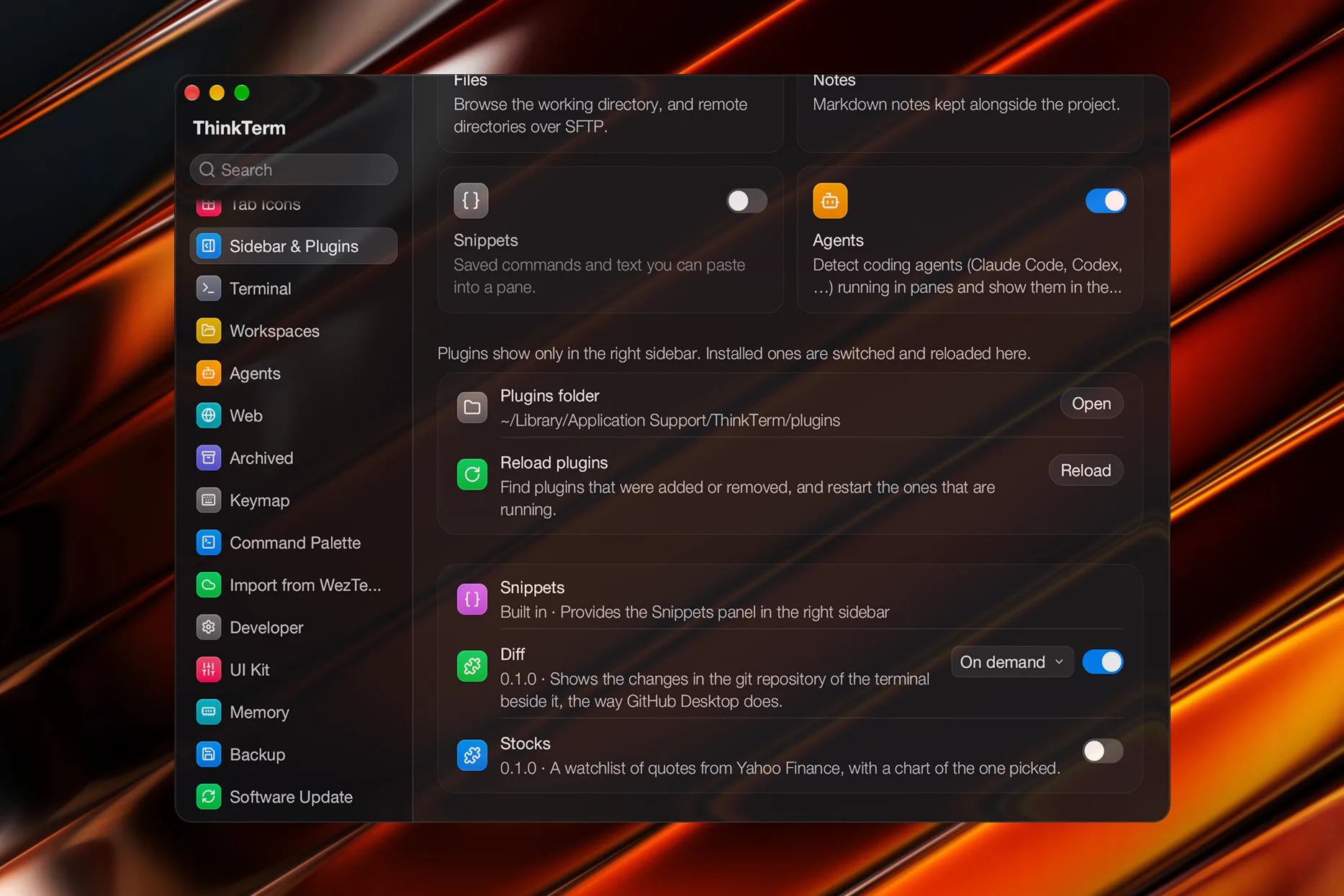
Only in the right sidebar. A plugin with a panel is offered in the sidebar's selector under its own name, beside Files, Notes and Snippets, and listed in Settings › Sidebar & Plugins. It adds no commands, no menu items and no notifications of its own.
A panel with more to show than the sidebar has room for can open a wider view to the left of it, as wide as you drag it. Where there is no room for one — a narrow window, a phone — the plugin fits what it would have shown there into the panel itself.
The panel looks the same in a browser as on the desktop, because both draw it with the same code and in ThinkTerm's own colours. A browser uses the plugins on the machine whose server served its page, not the ones on the device the browser runs on — so a headless host shows its own plugins, and the server packages ship the plugin server for that reason. See Web.
Installing and removing
A plugin is a directory holding a plugin.toml and the program it runs. Installing one means putting that directory in the plugins directory:
| System | Plugins directory |
|---|---|
| macOS | ~/Library/Application Support/ThinkTerm/plugins |
| Linux | ~/.local/share/ThinkTerm/plugins |
| Windows | %APPDATA%\ThinkTerm\plugins |
There is no install step and no restart. ThinkTerm notices a new plugin the next time it looks: when Settings › Sidebar & Plugins opens, or when you run thinkterm plugin list. Deleting the directory removes it.
Nothing downloads or installs a plugin for you, and there is no catalogue to pick one from. Every plugin on the machine is one somebody copied there.
The command line
thinkterm plugin looks at plugins and drives them from a shell:
| Command | What it does |
|---|---|
thinkterm plugin list | Every plugin, its state and its version |
thinkterm plugin enable <id> | Turns a plugin on |
thinkterm plugin disable <id> | Turns a plugin off |
thinkterm plugin reload [<id>] | Stops a plugin and reads its manifest again; every installed plugin when no id is given |
thinkterm plugin call <id> <json> | Sends a plugin a call and prints its answer |
thinkterm plugin dir | Prints the plugins directory |
reload also clears a plugin that has crashed or failed, so it can be tried again. The same switches, a Reload button and a way to open the plugins folder are on Settings › Sidebar & Plugins.
How plugins run
Plugins are not run by the window. They run under thinkterm-plugin-server, a small process apart from the GUI and from the session server, which the desktop, a browser and the command line all talk to. One runs per user on each machine. It starts when something first needs a plugin, and exits 30 seconds after the last thing using it goes, stopping every plugin with it.
Each installed plugin is then a process of its own, started the first time it is used — a panel coming on show, or a call from the command line. A plugin that exits unexpectedly is shown as stopped and started again the next time it is used; one that crashes three times within a minute is marked failed and left alone until you reload it or its files change. When its program changes on disk, ThinkTerm restarts it before its next use.
How long a plugin runs unused
A plugin is in use while one of its panels is on show anywhere, in a window or a browser, or while a call to it is waiting for an answer. Once it is not, how long its program runs on depends on its background mode:
| Setting | Starts | Stops |
|---|---|---|
Keep alive | with ThinkTerm on the machine | when ThinkTerm on the machine is gone |
On demand (the default) | when it is used | 2 minutes after it was last used |
Stop after use | when it is used | 10 seconds after it was last used |
A plugin's manifest says which it needs. The menu beside each plugin on Settings › Sidebar & Plugins overrides it per plugin, on the desktop and in the browser; the menu marks the one the manifest asked for as The plugin's default.
The trade-off is between a panel that is ready the moment you open it and a program that is not running while you are not looking. Keep alive suits a plugin that watches something for you; it is also the only mode in which ThinkTerm starts a plugin without being asked. A plugin kept alive that stops by itself is started again after two seconds, until it is marked failed.
"ThinkTerm on the machine" means the desktop app or the session server, whichever is running. On a host with no desktop it is the session server, so a plugin kept alive there runs for as long as that server does. Each machine keeps its own choice: the same plugin can be kept alive on a server and run on demand on a laptop.
A terminal on another machine
A panel belongs to the terminal beside it — the pane in focus in its window — and a plugin is told that terminal's directory. When that terminal runs on another machine reached over SSH, the plugin itself still runs here, on this machine. What it wants done there it asks ThinkTerm to do: run a program, read a file, or look at what is at a path. ThinkTerm does it over the same connection the Files panel uses, as you.
Those asks are limited in ways worth knowing:
- They reach only the machine of the terminal beside the plugin's panel, and only while that terminal is still there. One made for a machine the terminal has left fails.
- ThinkTerm connects to a machine only once you have let it, in Files or with the button the panel shows in place of its contents. Until then every ask fails.
- A program run there is stopped after 20 seconds.
This is a desktop feature. A panel in a browser does not reach other machines this way.
What a plugin can do
A plugin is a program you put on the machine, and it runs as you, with your permissions. ThinkTerm shows nothing of a plugin outside the sidebar, but that does not stop the program itself from reading your files, using the network, or running other programs: only a sandbox would, and there is none. Install one the way you would install any other program.
Remote asks extend that to the machines you reach over SSH, so a plugin you trust here is a plugin you trust on every host whose terminal sits beside its panel. The limits above narrow when it can reach them, not what it can do once it has.
The plugins in ThinkTerm's source
ThinkTerm's source carries three plugins under plugins/. They are not part of the downloads: each is built with Cargo and installed by copying its plugin.toml and program into a directory of its own in the plugins directory.
- Diff (
diff) shows the changes in the git repository of the terminal beside it since the last commit, the way GitHub Desktop does: the changed files in the panel, and the picked file's lines in the wider view, each changed line marked. It runsgitevery two seconds while a panel is on show, less often in a repository git is slow over, and without the programs a repository's configuration can name for it — an fsmonitor, an external diff, a text converter. Beside a terminal on another machine it hasgitrun there through ThinkTerm. - Stocks (
stocks) is a watchlist of quotes from Yahoo Finance, with each symbol's day as a line and a chart of the one picked. Yahoo's chart API is not an official one, and may refuse or change without notice. - Text Tools (
text-tools), inplugins/example, has no panel. It answers two calls from the command line and is there as a starting point for writing one.
Writing a plugin
A plugin's program talks to ThinkTerm over standard input and output, one line of JSON at a time. A panel is drawn by hand: the plugin sends a list of rectangles, text, lines and filled areas, and the places a click reaches it, and ThinkTerm draws them. There are no widgets.
The Rust crate thinkterm-plugin-sdk implements the protocol, and the plugins above use it. The manifest, the messages, the panel items and the limits are documented in full in docs/thinkterm/plugins.md in ThinkTerm's repository. While working on one, link your source directory into the plugins directory and rebuild; anything the program writes to standard error goes to the plugin server's log.
Related
- Files and Notes — the other right-hand panels, Snippets among them
- Web — the browser, which shows the same panels
- Remote — the connections a plugin's asks travel over
- Command Line — the rest of the
thinktermsubcommands